Instructions
Find easy to follow instructions
All GSAP animations used in this template are collected here. On this page, you’ll find guidance on how to locate and edit them. Each code block comes with extra notes to make it easier to understand.
You can find the code in the Embed Code inside this template.
Before that, prepare the library package from GSAP for some animations. This animation makes the scrolling experience smoother across all devices.
<script src="https://cdn.jsdelivr.net/npm/gsap@3.14.1/dist/gsap.min.js"></script>
<script src="https://cdn.jsdelivr.net/npm/gsap@3.14.1/dist/ScrollTrigger.min.js"></script><script>
document.addEventListener("DOMContentLoaded", () => {
const wrapper = document.querySelector(".ripple-wrapper");
const container = wrapper?.querySelector(".ripple-bar");
const template = container?.querySelector(".test");
if (!wrapper || !container || !template) return;
let bars = [];
let interactionReady = false;
// =========================
// BUILD BARS (WIDTH-BASED)
// =========================
function buildBars() {
interactionReady = false;
const wrapperWidth = wrapper.clientWidth;
const barWidth = template.offsetWidth;
if (!barWidth) return;
const count = Math.floor(wrapperWidth / barWidth);
container.innerHTML = "";
bars.length = 0;
for (let i = 0; i < count; i++) {
const bar = template.cloneNode(true);
container.appendChild(bar);
bars.push(bar);
}
prepGSAP();
playIntro();
}
// =========================
// GSAP PREP
// =========================
function prepGSAP() {
gsap.set(bars, {
scaleY: 0,
filter: "blur(6px)",
transformOrigin: "center center"
});
bars.forEach(bar => {
bar._scale = gsap.quickTo(bar, "scaleY", {
duration: 0.45,
ease: "power3.out"
});
bar._blur = gsap.quickTo(bar, "filter", {
duration: 0.45,
ease: "power3.out"
});
});
}
// =========================
// INTRO WAVE
// =========================
function playIntro() {
const center = Math.floor(bars.length / 2);
gsap.timeline()
.to(bars, {
scaleY: 1.25,
filter: "blur(0px)",
duration: 0.9,
stagger: { each: 0.015, from: center }
})
.to(bars, {
scaleY: 1,
duration: 0.6,
stagger: { each: 0.01, from: center }
}, "-=0.45")
.eventCallback("onComplete", () => {
interactionReady = true;
bars.forEach(b => {
b._scale(1);
b._blur("blur(0px)");
});
});
}
// =========================
// HOVER RIPPLE
// =========================
wrapper.addEventListener("mousemove", e => {
if (!interactionReady) return;
const rect = wrapper.getBoundingClientRect();
const mouseX = e.clientX - rect.left;
bars.forEach(bar => {
const r = bar.getBoundingClientRect();
const cx = r.left - rect.left + r.width / 2;
const d = Math.abs(mouseX - cx);
const s = gsap.utils.clamp(0, 1, 1 - d / 120);
bar._scale(1 + s * 0.35);
bar._blur(`blur(${s * 6}px)`);
});
});
wrapper.addEventListener("mouseleave", () => {
if (!interactionReady) return;
bars.forEach(bar => {
bar._scale(1);
bar._blur("blur(0px)");
});
});
// =========================
// RESPONSIVE
// =========================
let resizeTimer;
window.addEventListener("resize", () => {
clearTimeout(resizeTimer);
resizeTimer = setTimeout(buildBars, 200);
});
// =========================
// INIT
// =========================
buildBars();
});
// NUMBER ACHIEVEMENT (GROUP TRIGGER)
gsap.registerPlugin(ScrollTrigger);
const triggerEl = document.querySelector(".wrapper-about");
if (triggerEl) {
const counters = triggerEl.querySelectorAll(".achievement-number");
counters.forEach(counter => {
const target = parseInt(counter.dataset.number, 10);
if (isNaN(target)) return;
const obj = { value: 0 };
gsap.to(obj, {
value: target,
duration: 1.6,
ease: "power3.out",
scrollTrigger: {
trigger: triggerEl,
start: "top 85%",
once: true
},
onUpdate: () => {
counter.textContent = Math.round(obj.value);
}
});
});
}
// =========================
// MODULLAR ANIMATION ENTRANCE
// =========================
gsap.registerPlugin(ScrollTrigger);
const revealConfigs = [
{
trigger: ".wrapper-about",
targets: ".text-heading-about"
},
{
trigger: ".outer-achievement",
targets: ".text-mini-achieve"
},
{
trigger: ".wrapper-service",
targets: ".text-heading-servie"
},
{
trigger: ".wrapper-project",
targets: ".text-heading-project"
},
{
trigger: ".wrapper-process-true",
targets: ".text-heading-process"
}
];
revealConfigs.forEach(({ trigger, targets }) => {
const triggerEl = document.querySelector(trigger);
if (!triggerEl) return;
const textLines = triggerEl.querySelectorAll(targets);
if (!textLines.length) return;
gsap.fromTo(
textLines,
{
y: 90,
opacity: 0,
filter: "blur(20px)"
},
{
y: 0,
opacity: 1,
filter: "blur(0px)",
duration: 1,
ease: "power3.out",
stagger: 0.12,
scrollTrigger: {
trigger: triggerEl,
start: "top 72%",
toggleActions: "play none none none"
// once: true
}
}
);
});
</script>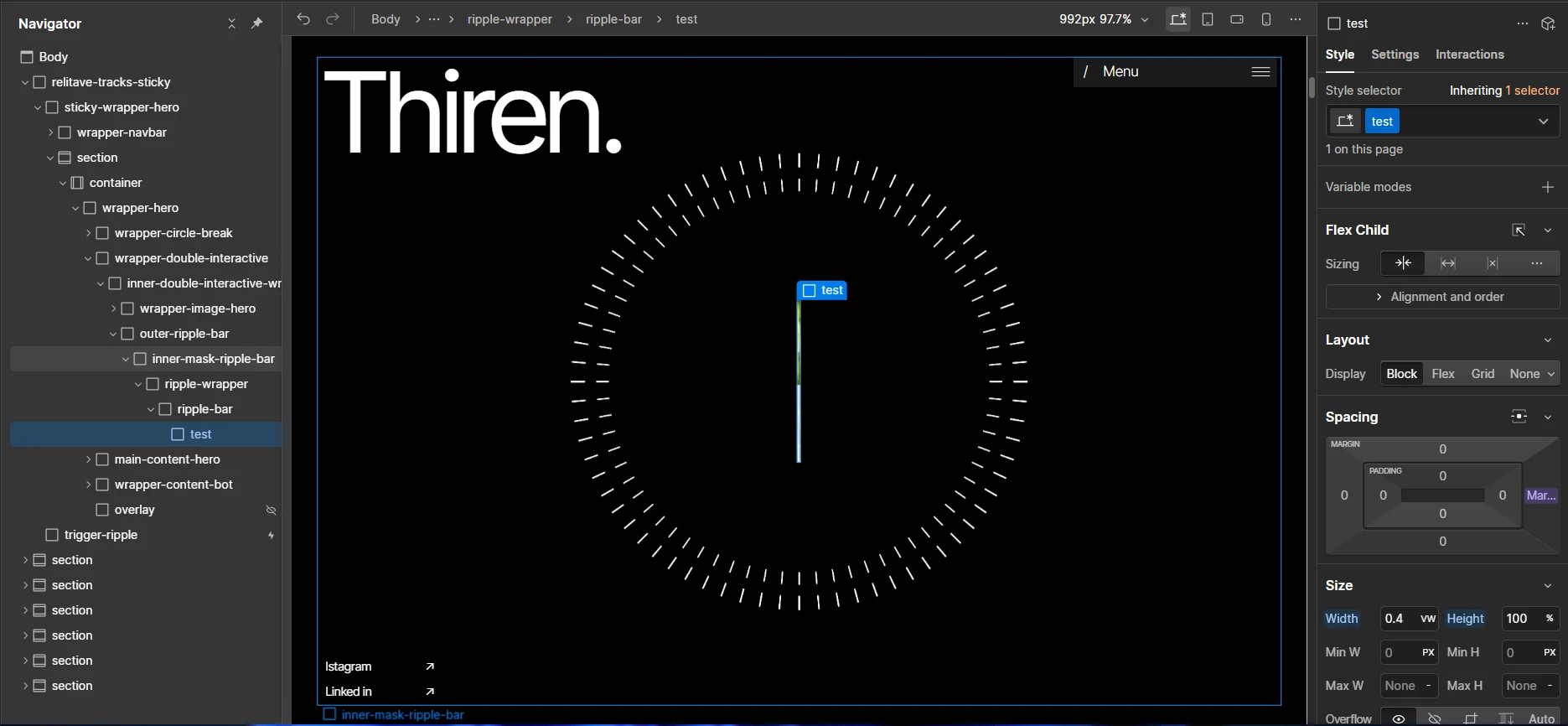
If you want to modify the ripple-bar class in the hero section, you need to open several div blocks as shown in the image. Then, pay attention to the “test” class — this is the div block that displays the rows used in the page-load animation on the website.
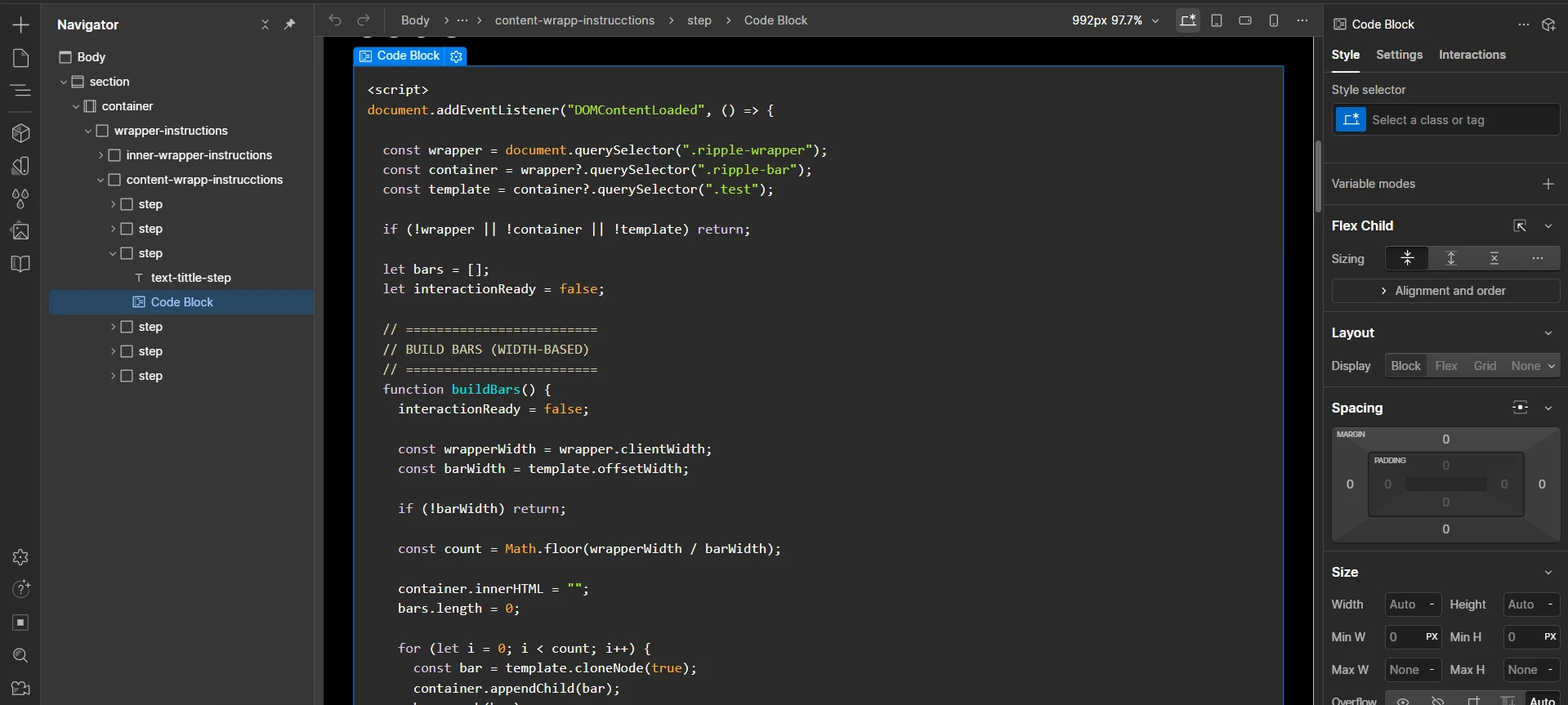
To use this class, you simply need to copy the class name “test” into the GSAP script code shown in the image above.
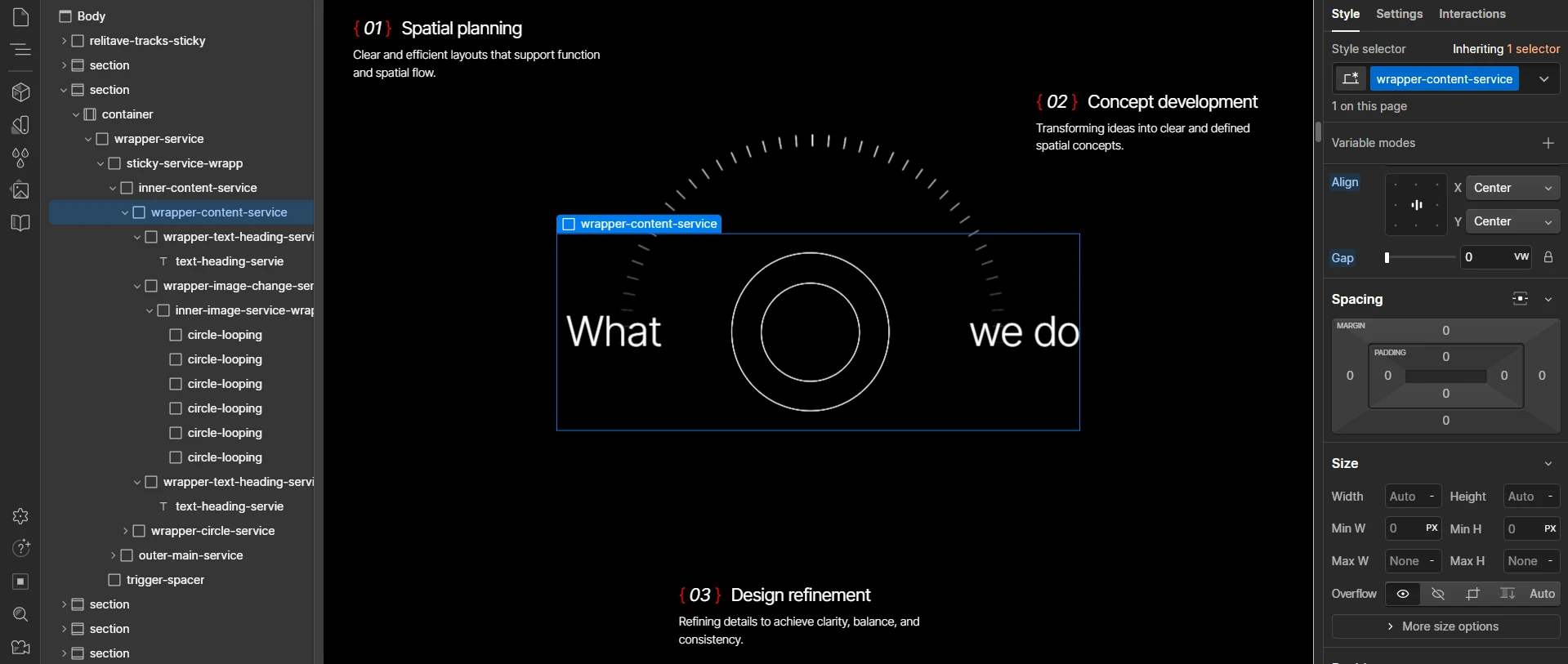
If you want to change the service content, you only need to open the div blocks shown in the image.